Microsoft recently pushed out a notification, as below, that Teams PowerShell Module (TPM) older than version 4.x.x will be retired by 15 June 2022.
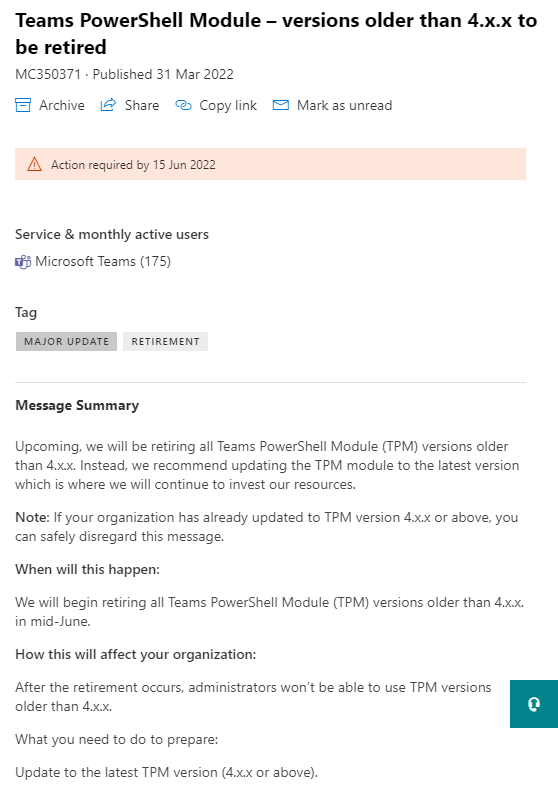
With this change, some of your Teams PowerShell scripts may need to be modified or updated. Or, you’d see some errors when executing. Here are some of things that I have come across recently:
The “PSListModifier is no longer supported, use a list or array to replace all items” error.
I came across this error when creating a new Online Voice Routing Policy with multiple Online PSTN Usages.
Example:
New-CsOnlineVoiceRoutingPolicy -Identity "LoopUp AMER" -OnlinePstnUsages @{add="PSTN Usage 1","PSTN Usage 2","PSTN Usage 3}
And you would see an error like below:
New-CsOnlineVoiceRoutingPolicy : OnlinePstnUsages as PSListModifier is no longer supported, use a list or array to replace all items

This error is due to the list operators like @{add="xxxx","yyyy","zzzz"} were supported in lower versions of TPM are now no longer supported. To execute the same command, you need to remove those operators and just list them out:
New-CsOnlineVoiceRoutingPolicy -Identity "LoopUp AMER" -OnlinePstnUsages "PSTN Usage 1","PSTN Usage 2","PSTN Usage 3"
There are some changes to other cmdlets too. See here for the release notes.
Another consideration, although not strictly related to this version change, is to update your user and Auto Attendant/Call Queue Resource Account enablement scripts to start utilisting the newer Set-CsPhoneNumberAssignment cmdlet to replace the following cmdlets:
Set-CsUserSet-CsOnlineVoiceUserSet-CsOnlineApplicationInstance
Set-CsOnlineVoiceApplicationInstance
More details here.
So, how do you find out what version you are on and how do you install a new module?
To retrieve the current version of your Teams PowerShell Module, run this command in a PowerShell window or in a PowerShell ISE session:
Get-InstalledModule -Name MicrosoftTeams
You would see an output like this:

Next, you can go check what’s available to download and install:
Find-Module MicrosoftTeams
If you want to see the pre-release versions instead of only the GA/stable versions, you can do so by including an extra switch:
Find-Module MicrosoftTeams -AllowPrerelease
At the time of writing, both commands returned the same version: 4.1.0

There is another switch can be useful if you want to rollback to an older version or install a specific version of Teams PowerShell Module rather than just the latest:
Find-Module MicrosoftTeams -AllVersions

To install a GA/stable version, use this command:
Install-Module MicrosoftTeams -RequiredVersion "4.1.0"
To install a pre-release version, use this command:
Install-Module MicrosoftTeams -AllowPrerelease -RequiredVersion "5.0.0-preview"
Note: Version 5.0.0-preview doesn’t actually exist at the time of writing.
I hope I have been helpful. Thank you for reading!
 Sho Time